Wisp: one keyboard and mouse for a Windows laptop and a Mac
How Wisp sends keyboard and mouse input from one computer to another over the local network, and why Wi-Fi can make it lag.

Just got a new M5 MacBook Air (yay!), but my Windows laptop will still be in use until Ram Altman gives us a break. As things stand, my desk has a Windows laptop on the left and a MacBook on the right, and I have ONE keyboard that I quite like. In the spirit of being a true Mr. Lazy, I want to control both devices with the same mouse and keeb (like 2 monitors) :)
Tools that do this exist (aka Synergy). But Claude exists, so here we have Wisp, after an hour-long sesh of simple prompting. Wisp is one Python file of about 3,000 lines. On Windows it uses only the standard library. On a Mac it needs PyObjC to reach the macOS input APIs. The code is on GitHub.
The big picture
One computer has the keyboard and mouse. Wisp calls it the sharing computer. The other is the receiving computer. While the pointer is on the sharing computer, nothing unusual happens. When the pointer reaches the edge that faces the other computer, Wisp starts to send every input event over the local network (unencrypted network traffic for now).
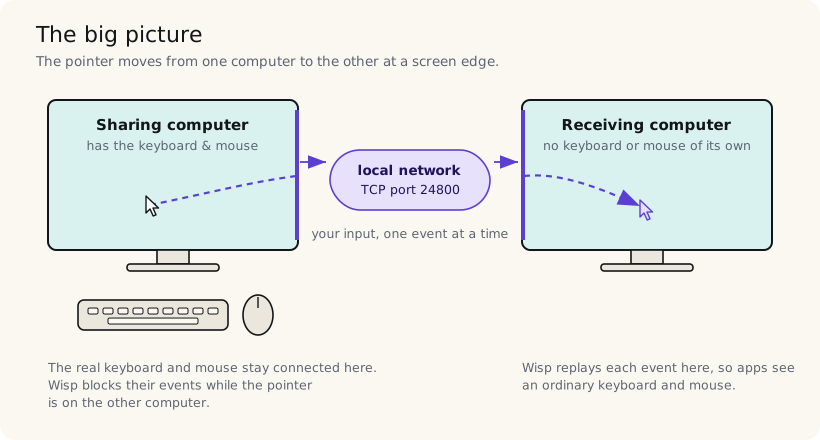
Either computer can share. I usually share from the PC, but the same file works from Mac to PC, Mac to Mac, or PC to PC.
One keystroke, end to end
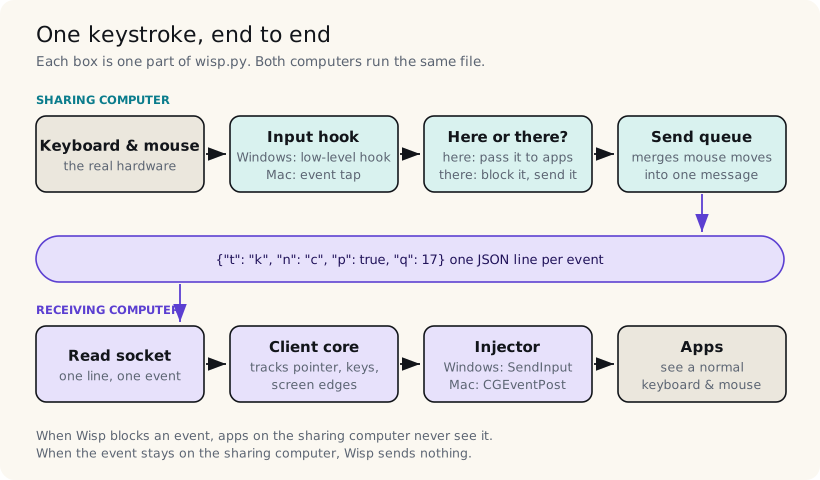
Each event goes through the same four steps on each side.
Capture on the sharing computer
On Windows, Wisp installs two low-level hooks, WH_KEYBOARD_LL and WH_MOUSE_LL. Windows calls these hooks for every key and mouse event, before any app gets it. A hook can return 1, and then Windows drops the event. That is how Wisp stops the PC from seeing input that belongs to the Mac.
The first version used a library that could only watch input, not drop it. Clicks went to both computers at the same time. Dropping events needs the raw hook, so it was written directly with ctypes.
The mouse needs one more trick. When the pointer is on the Mac, the PC pointer still exists. Wisp hides it and puts it at the centre of the largest PC screen. Each mouse event then gives a movement relative to that centre. Wisp sends the movement, and it moves the pointer back to the centre when it drifts more than 50 pixels away. So the hidden pointer never touches an edge, and the mouse never stops.
On a Mac, the same job uses an event tap (CGEventTapCreate). The tap can drop events too. Wisp also disconnects the visible cursor from the mouse, so the Mac cursor stays still while you work on the other computer.
Send
Each event becomes one line of JSON. A key press looks like this:
{"t": "k", "n": "c", "p": true, "q": 17}t is the type, n is the key name, p says whether the key went down or up, and q is a sequence number. The key name is neutral, such as c, ctrl or kp_enter. It is not a Windows or Mac key code. Each side converts the name to its own codes. This is how one file supports every direction.
The send queue makes one small optimisation. A mouse produces many move events per second. If several moves wait in the queue at the same time, Wisp adds them together and sends one message. The pointer arrives at the same place with fewer messages. Clicks and keys are never merged, and they keep their order.
Wisp sends the lines over one TCP connection with Nagle’s algorithm disabled (TCP_NODELAY). Without that option, the operating system waits a short time to collect small packets into larger ones. That wait is fine for a file transfer, but it makes a pointer stutter.
Replay on the receiving computer
The receiving side reads one line at a time and replays the event. On a Mac it builds a real CGEvent and posts it. On Windows it calls SendInput. Most apps treat these events the same as input from a local keyboard and mouse. Windows has one exception: injected input cannot reach a window that runs as administrator, the UAC prompt or the lock screen.
One conversion happens here. Between a Mac and a PC, Wisp swaps Ctrl and ⌘ Command. So ⌘C on a Mac keyboard becomes Ctrl+C on Windows, which is what my fingers expect.
What the two computers say to each other
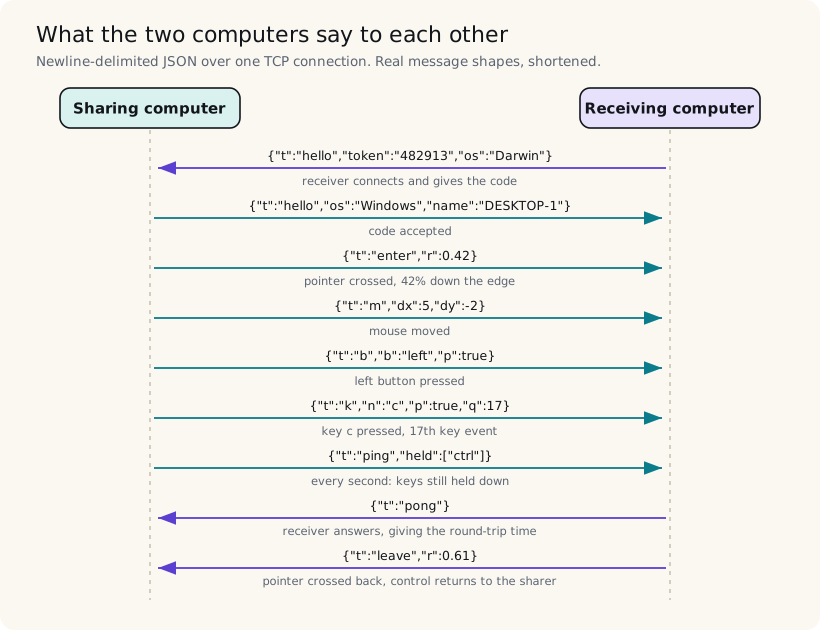
The protocol has about ten message types. These are the ones a normal session uses.
Two features exist only for safety.
The first is the heartbeat. Every second, the sharing computer sends a ping with the list of keys it holds down at that moment. The receiving computer compares the list with its own. If it holds a key that the sharing side does not, it releases that key. Without this, a lost “key up” can leave Ctrl held down on the Mac, and every click after that becomes a Ctrl-click. The pong reply also gives Wisp the round-trip time, which the window shows next to the computer’s name.
The second is the panic key. If something goes wrong while the pointer is on the other computer, press Ctrl+Alt+Shift+Esc on Windows or Ctrl+Option+Shift+Esc on a Mac. The keyboard and mouse return to the sharing computer at once.
Which edges lead to the other computer
I use more than one monitor, and the screens are not all the same height. Wisp reads the position of every screen, then decides which edges lead to the other computer.
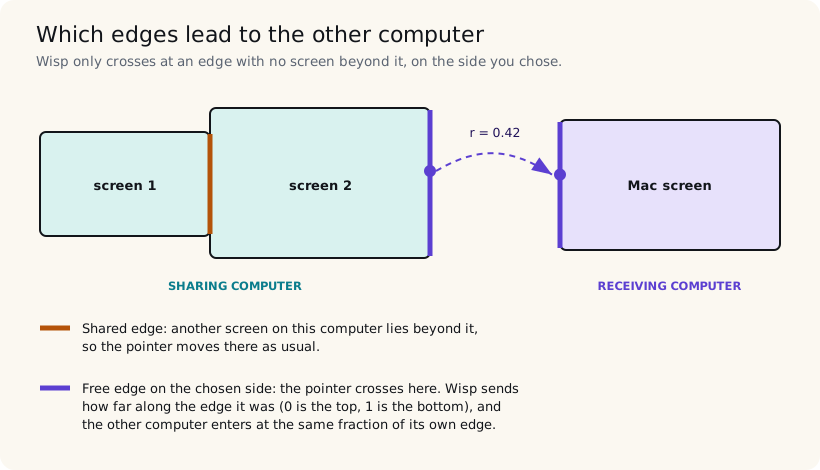
An edge with another screen beyond it is shared, and the pointer stays on that computer. A screen edge with nothing beyond it is free. Only free edges on the side you chose in the window lead to the other computer.
When the pointer crosses, Wisp sends a number from 0 to 1: how far along the edge the pointer was. The other computer puts its pointer at the same fraction of its own edge. If you leave the PC 42% of the way down, you enter the Mac 42% of the way down. This works with stacked screens too, where the free edge is at the top or the bottom.
Finding the other computer
You do not type IP addresses. When you press Find, the receiving computer sends a UDP broadcast to every device on the network. Each sharing computer answers with its name and port.
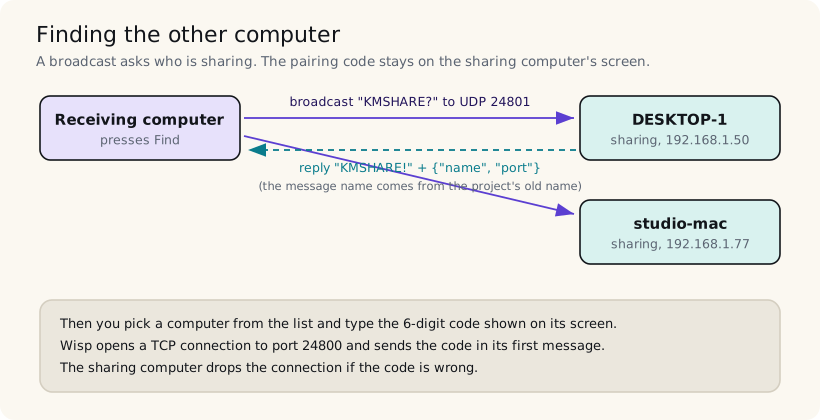
The reply does not contain the pairing code. You read the code from the screen of the sharing computer and type it. That way, another person on the same Wi-Fi cannot connect to your computer just by listening for the reply.
The code has one big limit at the moment. Wisp sends it, and everything after it, without encryption. Anyone who can read the traffic on your network can read your keystrokes, passwords included. Encryption is the next thing I plan to add. Until then, I use Wisp only on my home network.
Why Wi-Fi made it lag
The first real test felt bad. The pointer on the Mac jumped and lagged behind the mouse. The round-trip times in the log were between 300 and 1,900 ms.
The code was not the problem. On the same computer, a round trip took 0.2 ms. The Mac had a weak 5 GHz Wi-Fi signal, at −81 dBm. When I moved it to the 2.4 GHz network, round trips dropped to about 22 ms, and the pointer felt normal.
Later I found a second problem. A large download made the pointer lag again, even with a good signal.
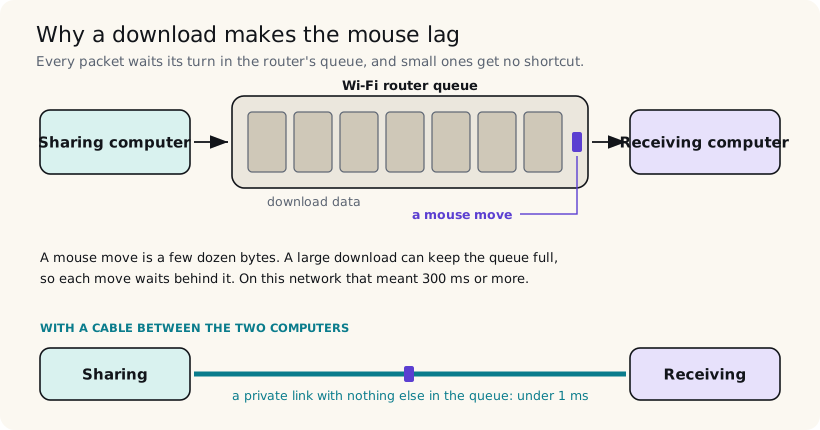
This problem is called bufferbloat. The router keeps a queue of packets that wait to go out, and a download fills it. A mouse move is only a few dozen bytes, but it must wait behind everything in front of it. Some routers have a setting called smart queue management, which usually fixes this for every device. Another fix is a direct Ethernet cable between the two computers. That gives Wisp a link with no other traffic, and round trips under 1 ms.
Bluetooth seems like an obvious alternative, but it is not faster. A Bluetooth link sends data in fixed time slots, usually 7.5 to 15 ms apart. It also uses the same 2.4 GHz band as the Wi-Fi it would replace.
Known caveat: anti-keylogging software
Anti-keylogging software is a known problem for Wisp. Some tools, such as the App Protection feature in Citrix Workspace, give random keys to every program that reads the keyboard with a hook. Wisp reads the keyboard that way, so it gets the random keys too. Close the protected window while you use Wisp. For Citrix, that is the main connection window.
How I tested the input code
I could not run most of the input code in my test setup. A test program cannot install a real Windows hook on a Mac, and it cannot read real input on either system without the user’s permission. So I had Claude write simulators instead.
A fake Windows calls the real hook functions and follows the same rules as Windows. A hook returns 1 to drop an event, and the pointer moves only when the event is not dropped. A fake Mac records every event that Wisp posts. Between them runs the real TCP code. The tests check every direction: PC to Mac, Mac to PC, Mac to Mac and PC to PC. They also check 264 combinations of monitor layout and start position.
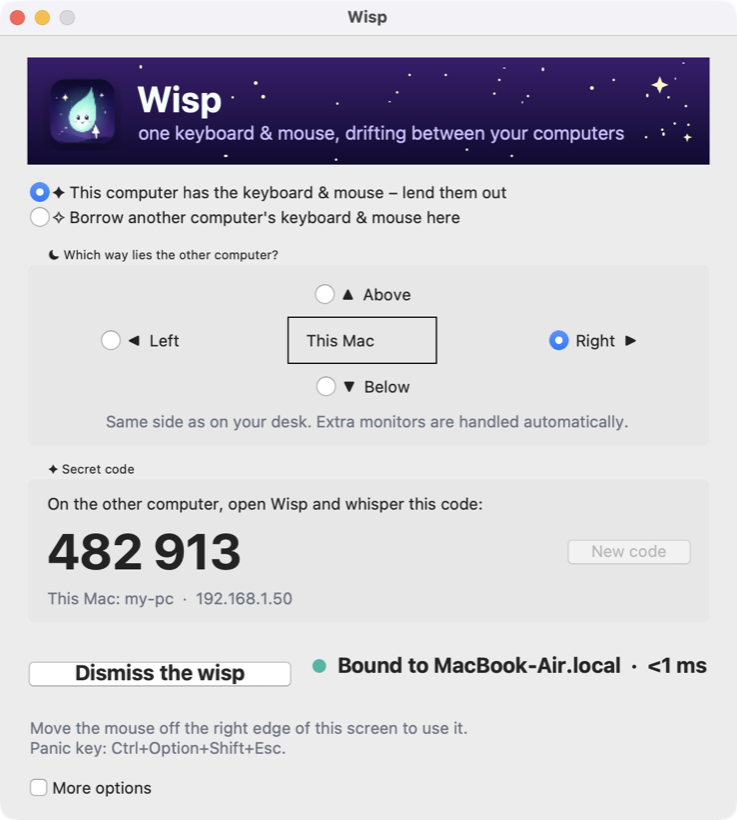
Here is the window that you use to pair the computers:
What is next
- Encrypt the connection, with a key made from the pairing code.
- Send mouse moves over UDP. A late move is then replaced by the next one, so the pointer does not stall behind it.
- Share the clipboard between the two computers.
The code and setup steps are on GitHub.